


The copy of windows is not genuine is a problem that we usually face and this can be really frustrating. Therefore, we are going to share easy methods that will help you fix the copy of windows is not genuine error. Go through the post to know about it.
or those windows users who are using pirated windows version, we are here with How To Fix “Windows Not Genuine” Error Message. Windows is the most useful and user-friendly OS and when you install a pirate or a duplicate CD of windows then you always get an error message after 30 days of the free trial of the windows. This error message can be removed easily as it looks very irritating on the desktop. So have a look at the complete guide below to remove out this error message from the windows screen permanently.
How To Fix “Windows Not Genuine” Error Message
The way to get rid of this error message is very simple, just some simple cmd commands that will help you fix this error message. So follow up some simple steps discussed below to proceed.
Using CMD To Remove “Windows Not Genuine” Error
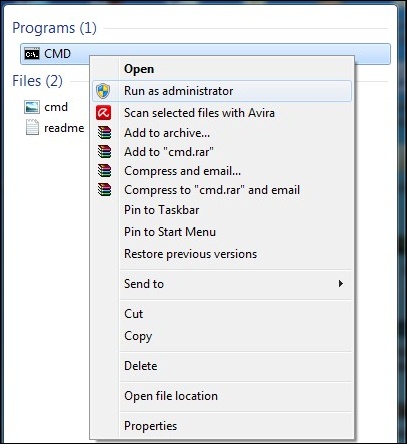
Step 1. First of all press windows button and then type cmd. Now right click on command prompt and click on run as administrator.
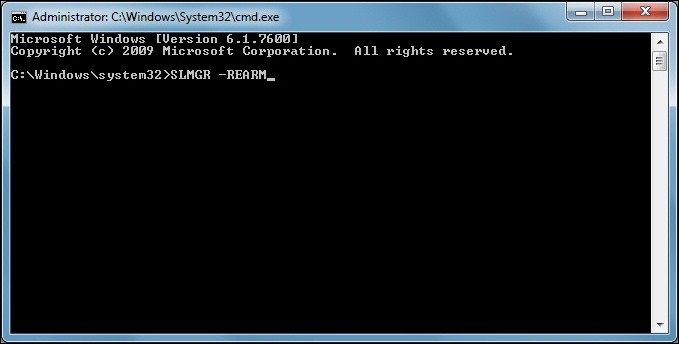
Step 2. Now there type SLMGR -REARM and press enter.
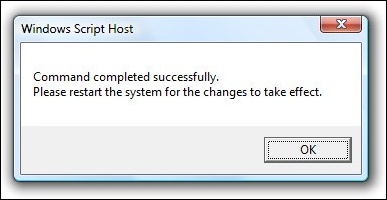
Step 3. After this, you will get a message asking the command is complete successfully and you have to restart the machine to reflect the changes. Simply restart your computer.
That’s it! you are done, now when your computer starts you will be not seeing that annoying windows error message again.
Using RSOP to Fix “Windows Not Genuine” Error
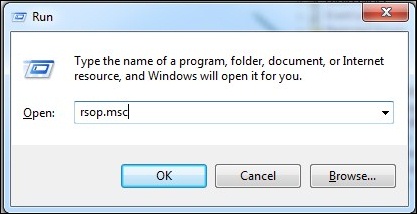
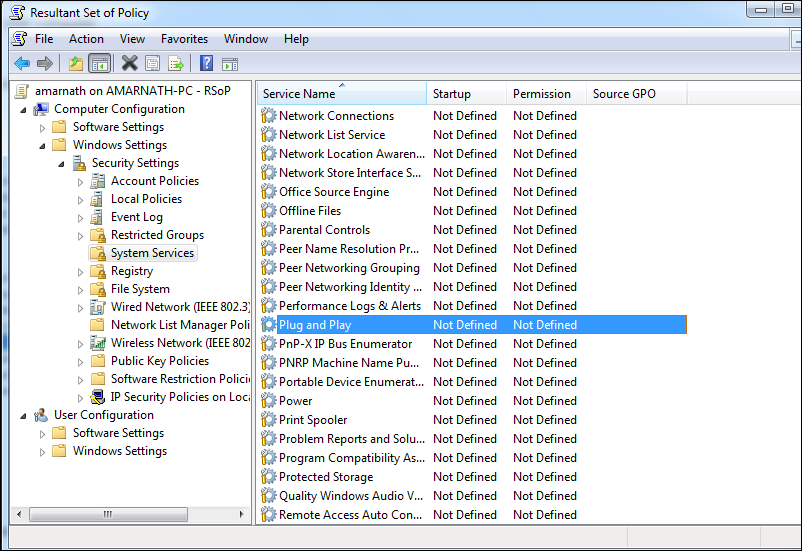
Step 1. You need to press windows button + R that will eventually open up your run command on your computer. Now you need to type rsop.msc in the box and hit enter.
Step 2. Now you need to locate the following path Windows Settings > Security Settings > System Services

Step 3. Now look for Plug and Play option in System services and Right click on it, Select properties and you need to click on “Automatic” there.
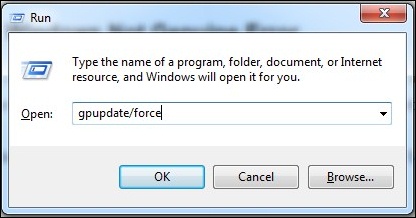
Step 4. Now once again you have to press Windows button + R and in the run box, you have to type gpupdate/force and hit the enter button.
That’s it! Now just restart your computer and you will not see “Windows not Genuine” error message.
Additional Steps:
You need to modify your windows update options. By default, it was selected on “Install updates automatically” you have to disable that and enable the option of “Never check for updates” This will prevent your future errors.
So above is all about How To Fix “Windows Not Genuine” Error Message. With this, you can easily fix your “window is not genuine” error with a simple command prompt and RSOP trick. Hope you like the post, do share with others too. Leave a comment below if you have any related queries with this.




0 comments :
Post a Comment