


You can easily recover your forgotten WiFi password from your connected Windows Computer or Android. We are going to share three easy methods that will help you recover your WiFi passwords from your connected devices. Go through the post to know about it.
hen any device gets connected to any wifi network the password of WiFi network automatically gets saved on that device until you disconnect it. However, this wifi PIN can be extracted from the device in which WiFi network is connected. This can be very helpful when you forget your wifi network and want to know the password of that wifi network. So, in that case, you can recover WiFi password from your connected windows computer or your android. And this can be done by following the complete guide that we have discussed below.
How to Find the Wi-Fi Password of your Current Network
The methods are very simple and in windows PC it can be done without using any third party tool and in android just with an app that will let you view the wifi password of current network to which your device is currently connected. So have a look on these methods below.
Method 1: Finding Current Wifi Password In Windows PC using CMD
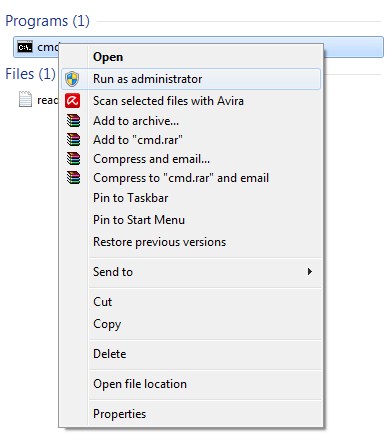
Step 1. In Your windows PC press Windows button and then type cmd and then right click on command prompt and then select Run as administrator.
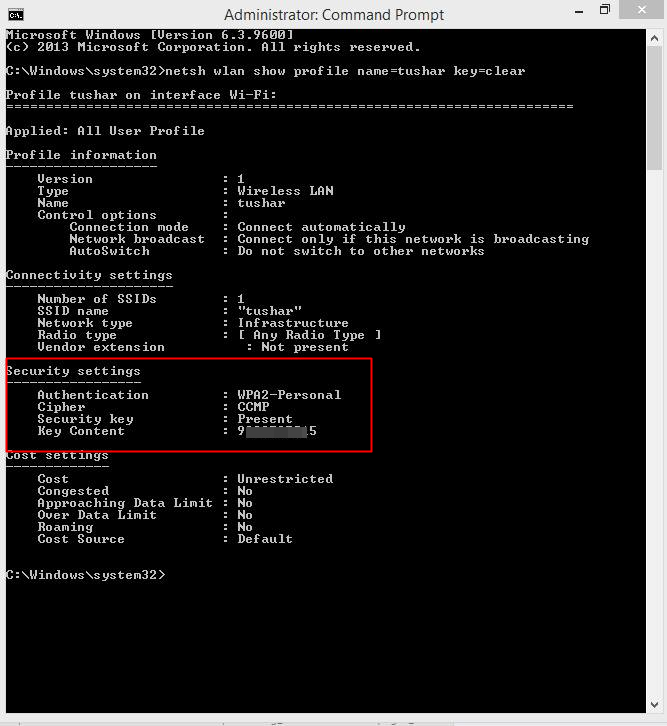
Step 2. Now command prompt will appear there you need to type netsh wlan show profile name=TechViral key=clear (where you need to replace TechViral with your network name)and hit enter and this will display all details of your wifi network with its password.
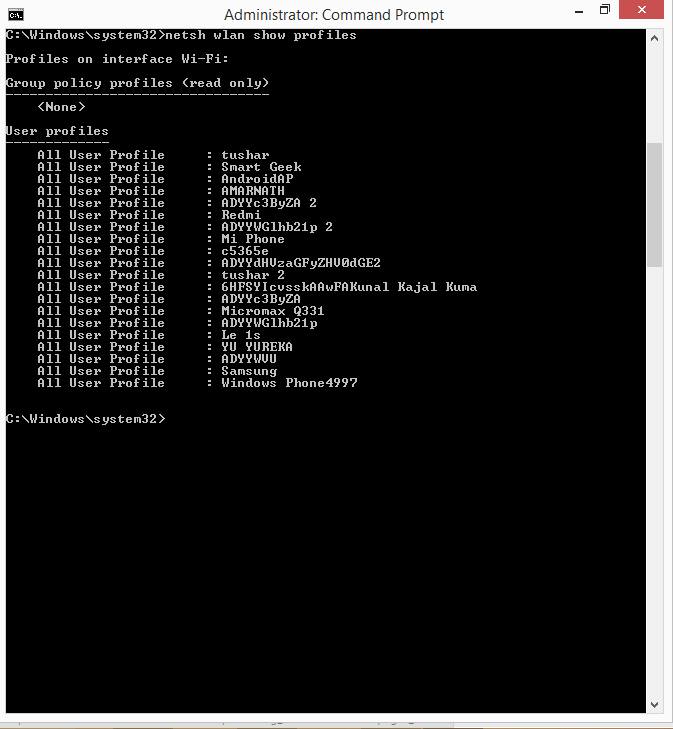
Step 3. If you want to view your previous WiFi connections, then you simply need to type the command:
“netsh wlan show profiles” and hit enter.
Now with this, you can easily get your wifi password of the network to which your device is currently connected.
Method 2: Using general Steps to find WiFi Passwords
Step 1. You need to navigate to system tray and need to right click on internet access and select the option “Open Network and Sharing Center”

Step 2. Now click on “Change Adapter setting”
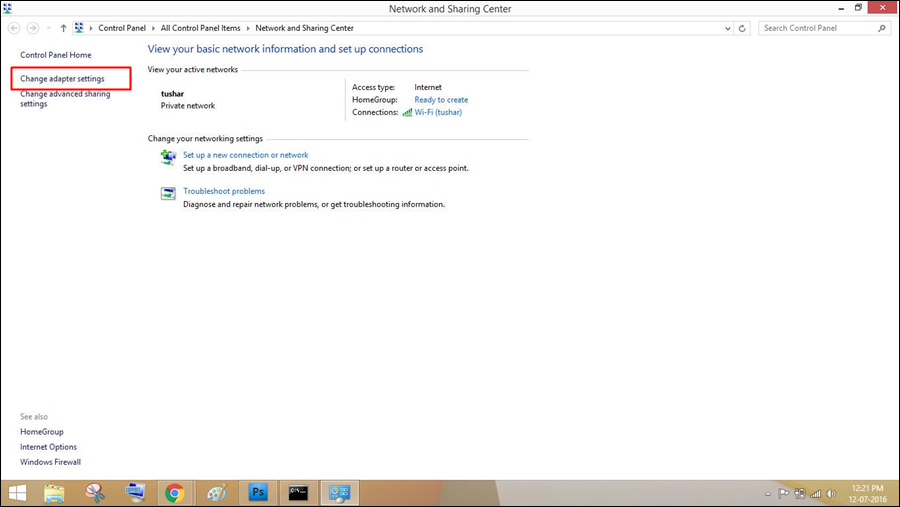
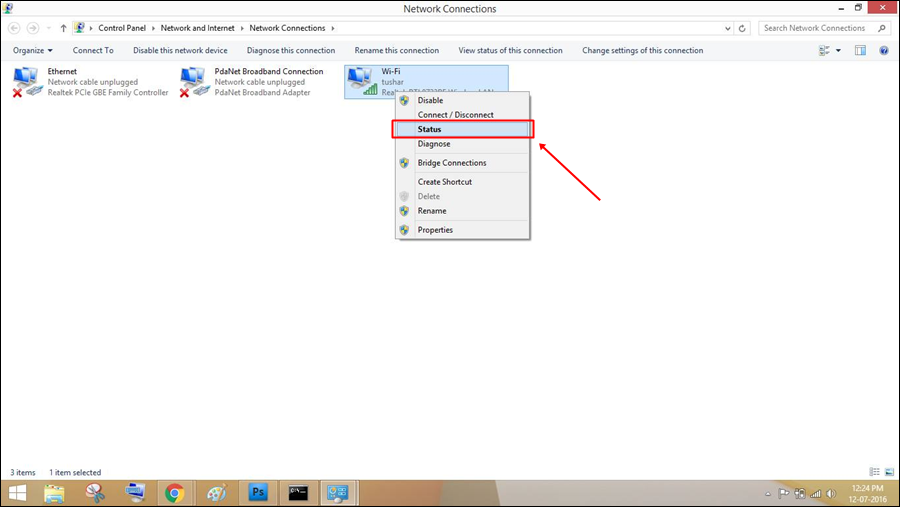
Step 3. Now you need to click on WiFi network and then select the option of “Status” on the drop-down menu.
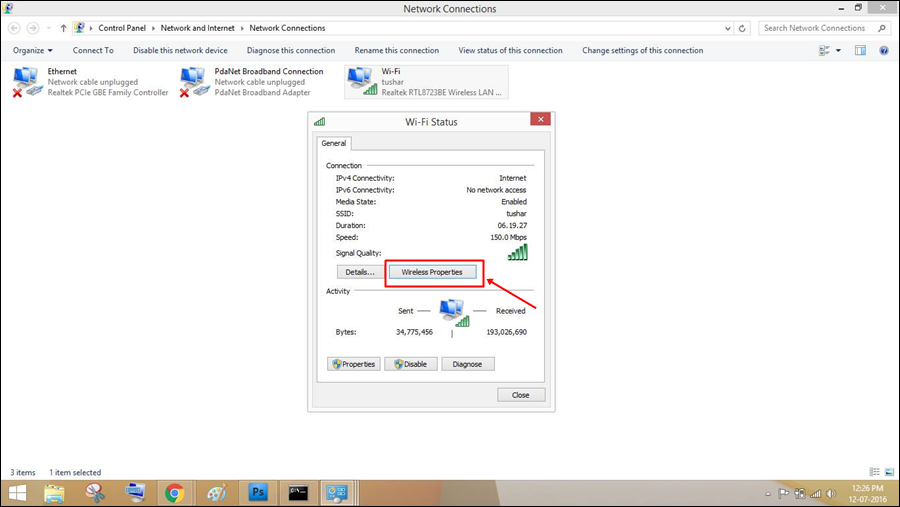
Step 4. In the very next window, you need to click on “Wireless Properties”
Step 5. There you need to select the tab “Security” and then check the option “Show Characters”
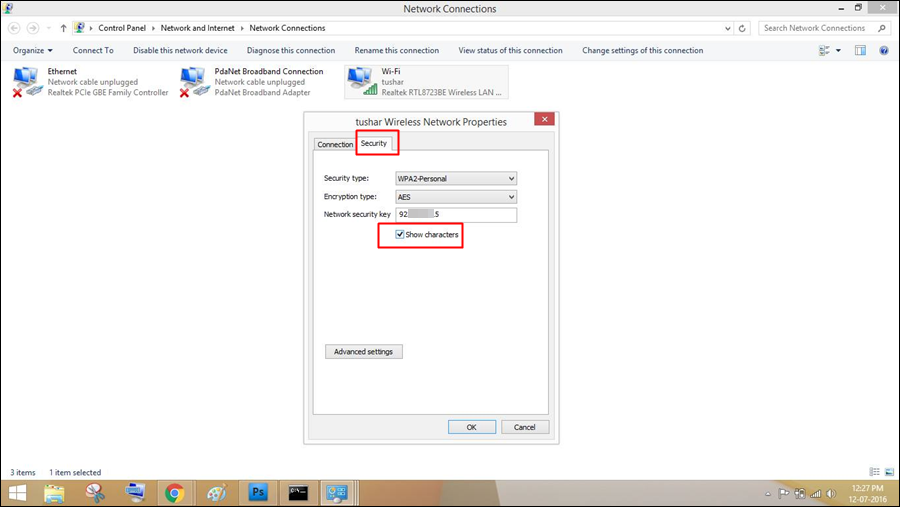
That’s it! You can see your current WiFi password
#2 Method: Finding Current Wifi Password In Android
Step 1. First of all, you need to download and install the cool android app that is FREE WiFi Password Recovery.

Step 2. Now open the app and scan out the devices around your device,

Step 3. Now you will see all the wifi device with their password that is currently saved in your android.
That’s it with this you can find out wifi password from any respective connected android device.
So above is all about How to Find the Wi-Fi Password of your Current Network. With these three methods, you can easily find the wifi password of a network to which your android or windows PC is currently connected. Hope you like this cool method, do share with others too. Leave a comment below if you have any related queries with the discussion discussed above.




0 comments :
Post a Comment